Connect your AI agent
Connect an AI agent such as Claude Code, Codex, Cursor, or Claude Cowork to your Arc
financial data. With the arc command-line tool and an API key, your agent can answer
questions like "What did we spend on vendors last month?" or "What's our cash position
across accounts?"
Prerequisites
- Create an Arc account and add an MFA method to your login. MFA is required to create an API key.
- Install Node.js 20 or newer on the machine where your agent runs.
Step 1: Create an API key
-
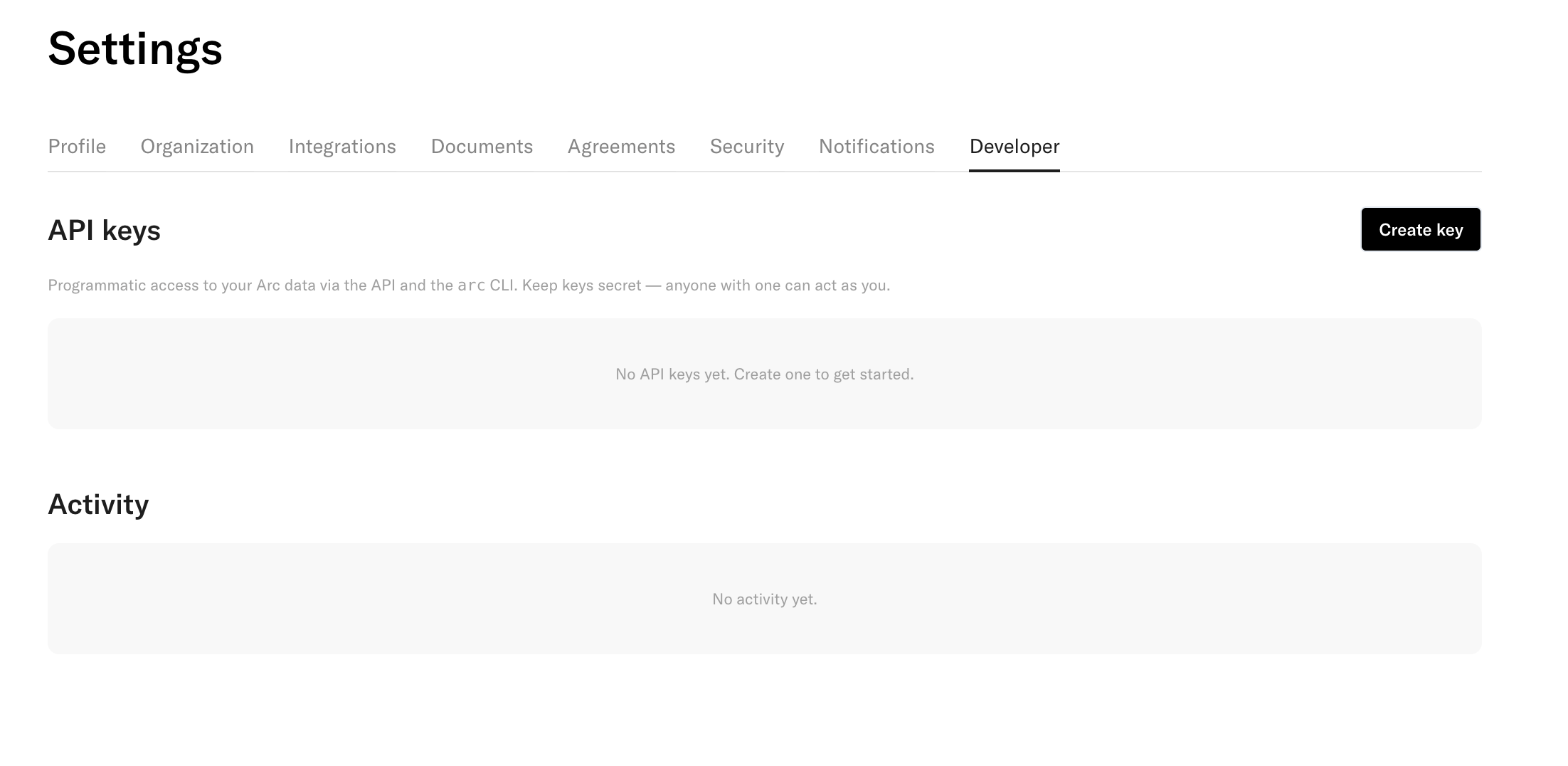
In the Arc dashboard, go to Settings → Developer.
-
Click Create key, name it
arc-cli, and choose whether to set an expiration date. If you leave the date blank, the key will not expire on its own. Complete the MFA prompt.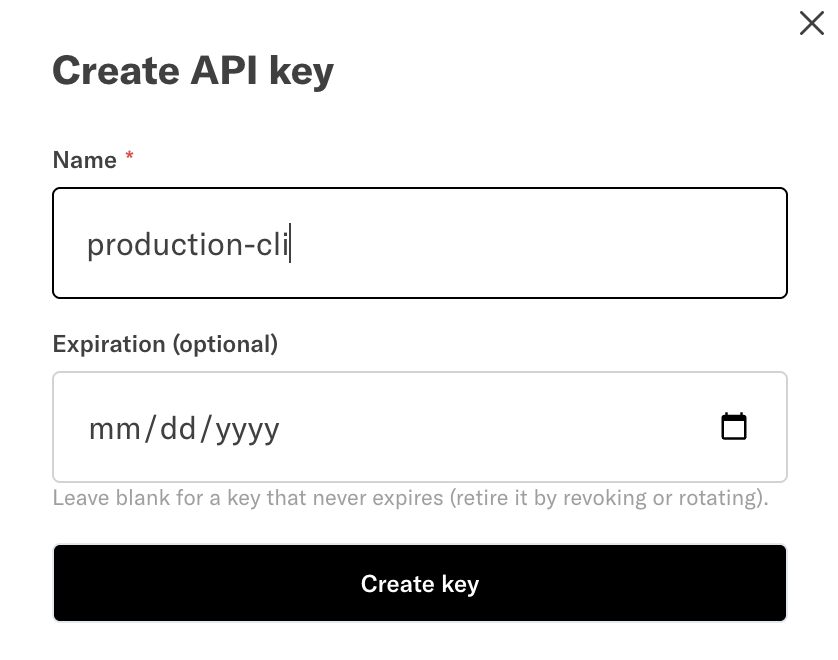
-
Copy the key now. It starts with
arc_sk_and is only shown once. If you lose it, rotate the key to get a new one.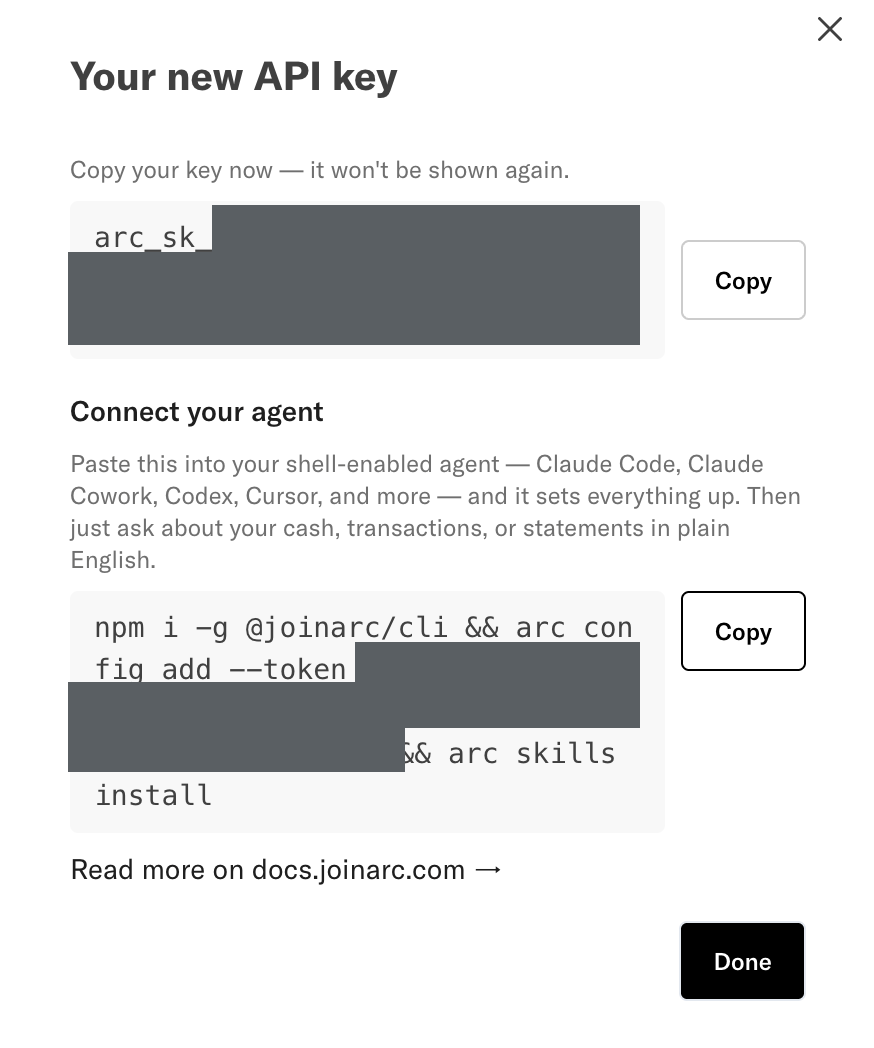
You can review a key and its activity any time under Settings → Developer.
Use of the Arc CLI and API is subject to the Arc Developer Terms.
Step 2: Connect your agent
The CLI works with any agent that can run a shell, including Claude Code, Codex, Cursor,
and Gemini CLI. Install the CLI, add your key with arc config add, and start the agent.
The CLI remembers the profile for future sessions, so you do not need to keep an environment
variable active.
The bundled skills install to both ~/.claude/skills and the vendor-neutral
~/.agents/skills by default. To install them in one specific folder instead, run
arc skills install --dir <path>.
Terminal agents (Claude Code, Codex, Cursor, …)
In your terminal:
# 1. Install the CLI (Node 20+) and Arc's agent skills
npm install -g @joinarc/cli && arc skills install

# 2. Add the key you created under Settings → Developer
arc config add     # paste the key at the prompt; it stays hidden
arc config add verifies the key, shows the company and owner, and creates a default profile
and a named profile for the company. It keeps any profiles
you already have. To connect another Arc account later, run arc config add again.
The dashboard also provides a one-line command with your key already filled in:
arc config add --token …. This is quicker, but it puts the key in your shell history.
Use the interactive prompt above if you want to keep the key out of your history.
Start your agent from any terminal and ask it a question. The CLI uses the profile you added, so you do not need to paste the key into the chat.
Prefer an environment variable for a throwaway shell or CI? ARC_TOKEN still works and takes
precedence over a saved profile. See Authenticate for details.
Claude Cowork
Cowork runs commands in its own sandbox, so set it up in plain English:
Install the Arc CLI with
npm install -g @joinarc/cli, runarc skills install, and save my Arc API key witharc config add. The full docs are at https://docs.joinarc.com/llms-full.txt. Then use it to answer questions about my finances. My key is:arc_sk_…
It installs the tool and skills and takes it from there. Unlike the terminal setup, this puts
your key in the chat. Treat that conversation as sensitive, and revoke the key if it is exposed.
Cowork runs in a sandbox, so if it can't reach Arc, allow api.arc.tech in its network settings.
Make it persist across sessions. Each Cowork chat starts a fresh sandbox, so a one-off
npm install is gone by the next session. Cowork's cloud environment caches the filesystem
its setup script produces, so add the install there once:
npm install -g @joinarc/cli && arc skills install || true
Then arc and the skills are ready in every later session (the cache refreshes about weekly and
whenever you edit the setup script). Two caveats: there's no persistent home directory or secrets
store yet, so your arc_sk_ key is still supplied per session (with arc config add or the prompt
above); and a repo-committed .claude/ config carries over, but a user-level ~/.claude does not.
No-shell assistants (ChatGPT, Claude.ai, Slack)
These can't run a command-line tool. A one-click MCP connector is coming. See MCP. For now, use a terminal agent or Cowork.
Step 3: Ask your agent
Once connected, ask a question. The agent will use the arc tool to fetch what it needs.
For example:
- "What were my largest transactions in the last 30 days?"
- "What's my total cash position across all accounts?"
- "Summarize spending by counterparty last quarter."
- "Pull up the details of my most recent ACH transfer."
What your agent can (and can't) do
Your agent can:
- Read transactions, accounts, and balances.
- Read cards, payments, statements, and invoices.
- Read treasury holdings and accounting-connection status.
- Use any read-only command listed in the CLI reference.
Your agent can't:
- Move money or create transfers.
- Change settings or other data.
- See any company other than the one the key belongs to.
Key lifecycle
A key belongs to the person who created it, so its access tracks yours automatically:
- It acts with your permissions. If your access changes, the key's access changes with it.
- It stops working if you're deactivated or leave the company. Every request re-checks the key against your account, so an offboarded owner's keys can't be used.
- Expiration is optional. Set one when you create the key, or leave it blank and the key doesn't expire on its own. Retire it by revoking or rotating it.
Manage or revoke access
Everything is managed from Settings → Developer:
- Revoke stops a key immediately. Use it when a key is no longer needed or may be exposed.
- Rotate replaces a key with a new one and shows the new secret once. You can rotate keys on a regular schedule or whenever you suspect one has been exposed.
- Activity shows who created, rotated, revoked, or renamed a key, and when it happened.
Troubleshooting
arc whoamifails: a missing key is a usage error (exit code 2). The CLI found no key in--token,ARC_TOKEN, or a saved profile. A wrong, expired, or revoked key is an auth error (exit code 3). Either way, runarc statusto see which key the CLI resolved and where it came from, or create a fresh key and add it witharc config add.arc: command not found: the CLI isn't installed or isn't on yourPATH. Re-runnpm install -g @joinarc/cliand confirm witharc --version.- "Create key" is blocked: set up an MFA method on your Arc login first. It's required to create a key.
Security
Arc API keys are designed to give agents narrow, controlled access:
- Read-only: An agent can read your financial data, but it cannot move money or make changes.
- Company-scoped: A key can only access the company it was created for.
- Permission-scoped: A key has your permissions and never has more access than you do.
- Protected by MFA: You must complete an MFA prompt to create a key.
- Auditable: You can review key activity under Settings → Developer.
- Revocable and rotatable: You can revoke access immediately or replace a key at any time.
You are giving a key to a tool that runs on your machine or in your agent's sandbox, not connecting Arc directly to a third party. You remain in control of the key and can revoke it whenever you need to.